
1. Quick Fix: The Hard Refresh Shortcut
Before wiping your entire history, try a hard refresh on the problematic webpage to bypass the cache:
- Windows & Linux: Press Ctrl + F5 or Ctrl + Shift + R
- macOS (Chrome / Firefox / Safari): Press Cmd + Shift + R or hold Shift and click the Refresh button.
2. Google Chrome (Desktop & Mobile)
Open Clear Browsing Data
Press Ctrl + Shift + Delete (Windows) or Cmd + Shift + Delete (Mac).
Select Time Range & Items
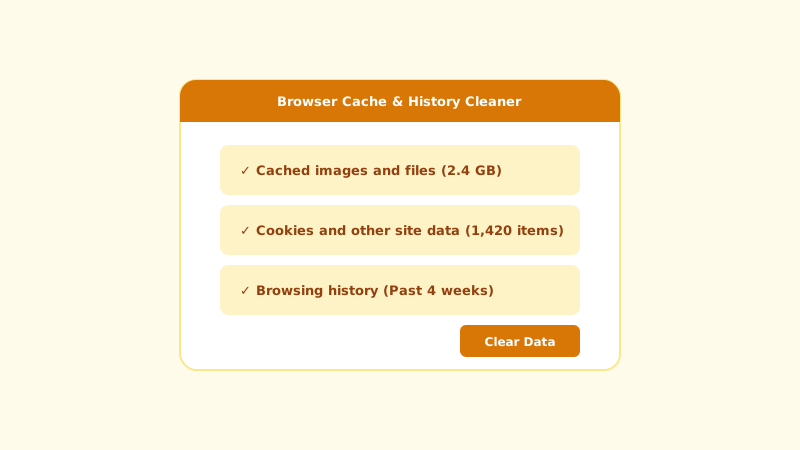
Set Time Range to All time. Check Cached images and files. (Optionally uncheck Cookies if you wish to remain logged into websites).
Click Clear Data
Click Clear data and restart Chrome.
3. Mozilla Firefox, Apple Safari & Microsoft Edge
Firefox: Settings > Privacy & Security > Cookies and Site Data > Clear Data.
Safari (Mac): Develop menu > Empty Caches (or Safari > Settings > Privacy > Manage Website Data).
Microsoft Edge: Settings > Privacy, search, and services > Clear browsing data.
Clearing cache frees up disk space and forces your browser to download the latest CSS stylesheets and JavaScript assets from web servers.