
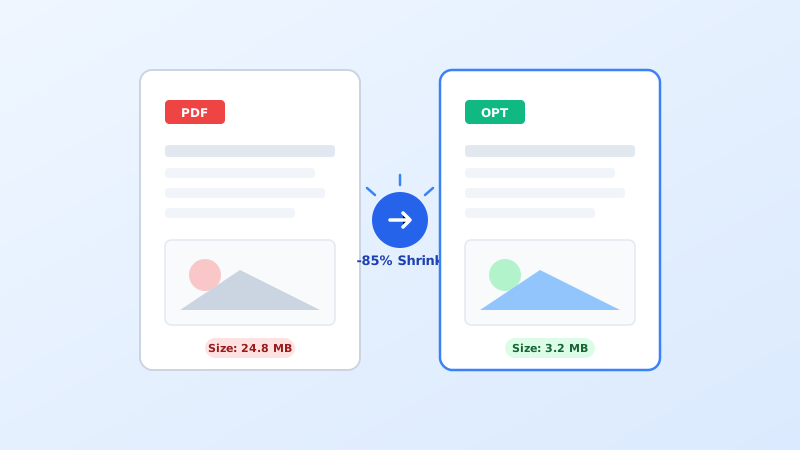
1. What Is PDF Compression and How Does It Work?
Portable Document Format (PDF) files often become unnecessarily large due to three main culprits: uncompressed high-resolution images (such as 300+ DPI scans), redundant embedded font families, and hidden metadata streams (revision history, thumbnails, and color profiles).
When you compress a PDF using intelligent optimization algorithms, the system resamples heavy photos to standard web and print resolutions (typically 144 to 150 DPI), strips out unused font subsets, and removes duplicate metadata without degrading the underlying vector text lines.
2. Method 1: Using a Free Browser-Based Tool (Quickest)
For single documents under 100MB, browser-based compression tools are the fastest option because they require zero software installation and work across Windows, Mac, Chromebooks, and smartphones.
Upload Your Document
Navigate to a reputable online utility (such as iLovePDF, Smallpdf, or Adobe Acrobat Web). Drag and drop your file into the upload zone or select it from Google Drive.
Select Compression Level
Most tools offer three compression presets:
- Extreme Compression (Low Quality): Best when you must meet strict 1MB email or job portal limits.
- Recommended Compression (Good Quality): Balances high image clarity with an average 70% file size reduction.
- Less Compression (High Quality): Preserves original 300 DPI image fidelity for commercial printing.
Download the Optimized File
Click Compress PDF, wait 3–5 seconds for cloud processing, and download the compressed document.
<!-- Approved AdSense Responsive Placement -->
3. Method 2: Compress PDF Offline on Windows
If you frequently handle large documents or work without internet access, Windows offers two reliable offline options:
Option A: Built-in Microsoft Print to PDF
Open the PDF in Microsoft Edge or Google Chrome, press Ctrl + P, select Microsoft Print to PDF as the printer destination, and hit print. Edge flattens unused form layers and downsamples oversized images automatically.
Option B: Free Open-Source Desktop Software (PDF24 Creator)
For advanced control, download PDF24 Creator (100% free, no ads, no watermarks). It allows custom DPI adjustment, grayscale conversion, and batch compression of hundreds of files at once.
4. Method 3: Compress PDF on macOS (Built-in Preview App)
macOS includes a native compression utility built directly into Preview without needing extra downloads:
- Double-click your PDF to open it in Preview.
- In the top menu bar, click File > Export... (not Export as PDF).
- Locate the Quartz Filter dropdown menu.
- Select Reduce File Size.
- Choose a destination folder and click Save.
- ✓ No software installation required
- ✓ Works identically across mobile and desktop
- ✓ Advanced AI OCR and font optimization
- ✓ Direct Google Drive / Dropbox integration
- ✕ Requires active internet connectivity
- ✕ Hourly file limits on free tiers
- ✕ Unsuitable for confidential legal files
- ✕ Slower upload times for 100MB+ files
5. Compression Methods Comparison Table
Here is a breakdown of the top compression utilities based on privacy, compression ratio, speed, and platform support:
| Method / Software | Platform | Avg. Size Reduction | Privacy Level | Free Tier Limits |
|---|---|---|---|---|
| Adobe Acrobat Web | Web Browser | 70% – 85% | Standard Cloud Encryption | 2 tasks / 24 hours |
| PDF24 Creator | Windows Desktop | 60% – 80% | 100% Offline (Highest) | Unlimited Free |
| macOS Preview Quartz | macOS Native | 50% – 75% | 100% Offline (Highest) | Unlimited Free |
| Ghostscript CLI | Linux / Mac / Win | 75% – 90% | 100% Offline (Highest) | Open Source |
6. Frequently Asked Questions
For quick everyday tasks, Adobe Acrobat Web provides the highest fidelity. For regular heavy usage or confidential files, PDF24 Creator (Windows) and macOS Preview give you unlimited, private, and instant local compression.